
I have this recurring need where we I have PDF of national Identity Cards. It has front side and back side. Both in separate pages.
Most often than not I need to move it to single page PDF. This was it’s easy to print (thought print tool does this is without much trouble) and some government entities accept images, so it’s easy to export one file Pdf to image rather than two page Pdf.
We will achieve exactly that using awesome pdf-lib. It can create, modify PDF. We can draw elements like text, graphics to it. It can also merge and split PDF files.
Planning
We need three major steps
- Accept existing PDF file
- Manipulate it using pdf-lib
- Display it using iframe
Our rough layout will look like this
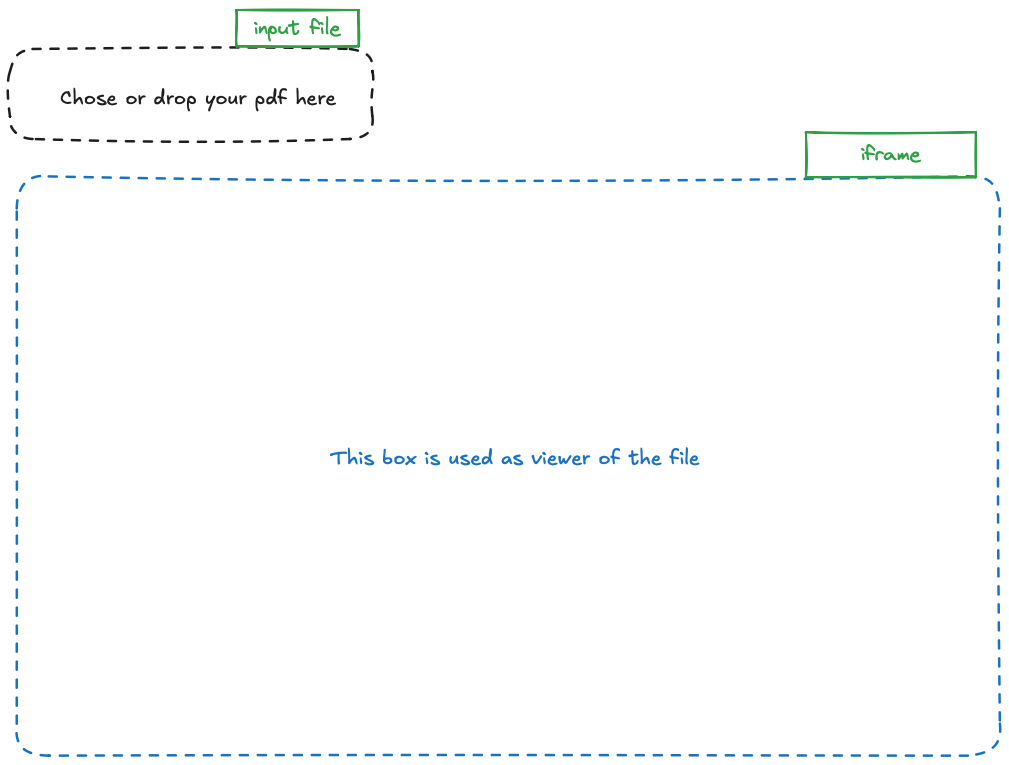
Our first version will just accept file and display it as it is. So let’ prepare some HTML for it
The template
<main>
  <input id="fileInput" type="file" accept=".pdf" />
</main>
<output>
  <iframe> </iframe>
</output>
<script type="module" src="/src/main.ts"></script>
We added some basic input element to grab file and iframe to view it. Let’s go to the implementation part.
Base Styles
html, body {
  height: 100%;
}

body {
  display: grid;
  grid-template-rows: auto 1fr;
}

iframe {
  width: 100%;
  height: 100%;
}

input[type='file'] {
  outline: 1px dashed grey;
  padding: 2rem;
}
We added some styles for base layout. The iframe comes with default dimension which is very small to render the pdf file. So we will set to take all the available space of it’s parent element.
Display file
const fileInput = document.querySelector('input[type="file"]')
const iframe = document.querySelector('iframe')
We are getting reference of those element in JavaScript.
fileInput.addEventListener('change', event => {
  const file = (event.target as HTMLInputElement).files[0]
  const reader = new FileReader()

  reader.onload = async () => {
    iframe.src = reader.result
  }

  reader.readAsDataURL(file)
})
On file change aka file upload we use file reader to read it as DataURL. Then on line 6 we are setting iframe source to reader result.
Output
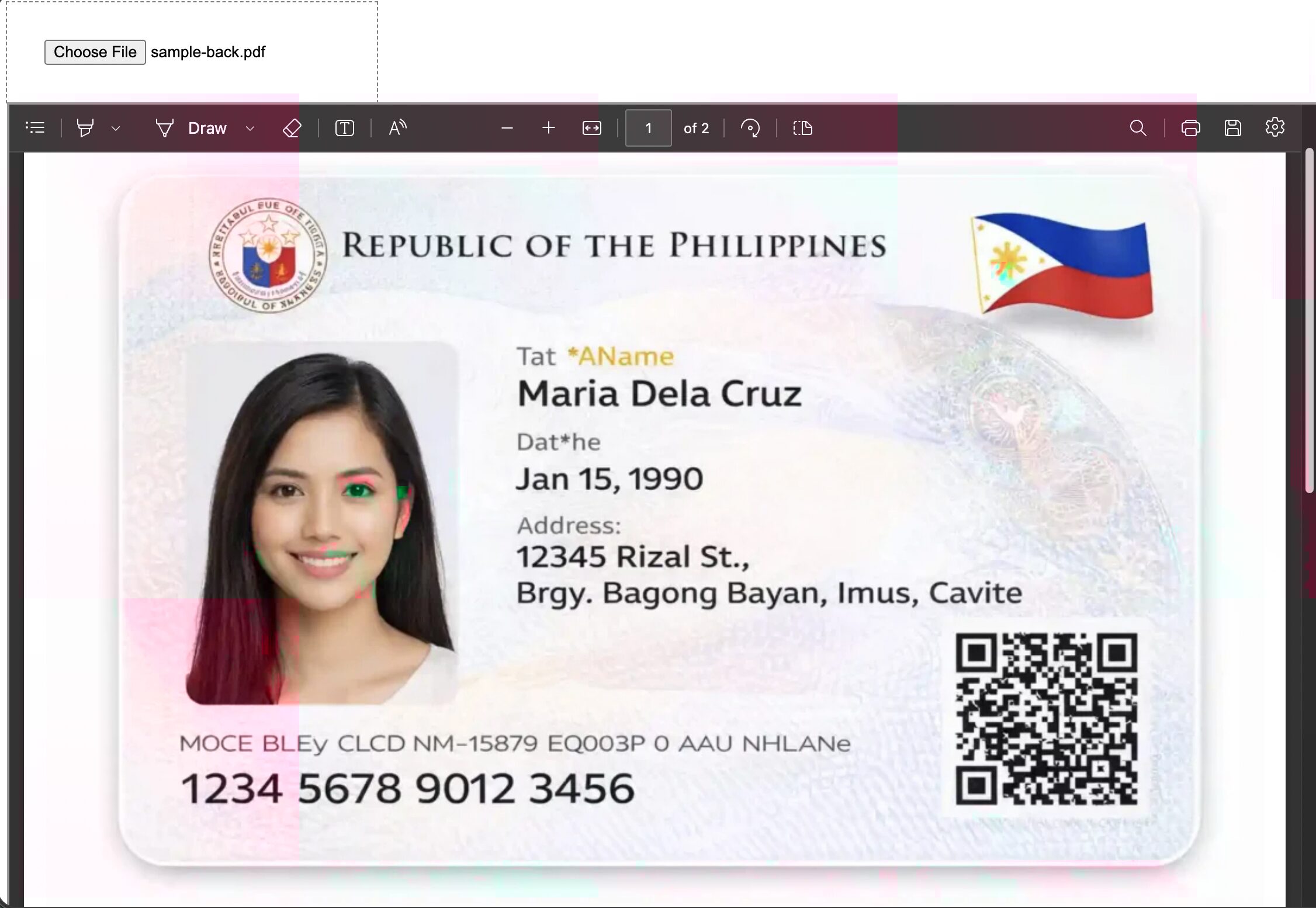
As we can see the pdf viewer shows 1 of 2 pages. This we don’t want. We want one page for both faces of the page.
We have managed to build a simple input and output viewer.
Implementation
Next we need to involve the pdf-lib. We can achieve our target with following plan
- Load document in to pdf-lib
- Extract pages 1 and 2
- Create a brand new document
- Create new page and embed page 1 as top half in newly create page
- Embed the page 2 as bottom half of the newly created page
- Save document and update the viewer
1. Load document in pdf-lib
2. Extract pages 1 and 2
import { PageSizes, PDFDocument, PDFPage } from 'pdf-lib'

fileInput.addEventListener('change', event => {
  //...
  reader.onload = async () => {

    const doc = await PDFDocument.load(reader.result)
    firstPage= doc.getPage(0);
    secondPage = doc.getPage(1)
    createDocument(firstPage, secondPage)
  }

  reader.readAsArrayBuffer(file)
})
First of all we are reading file as arrayBuffer that is what accepted format on line 7. On next two lines we extract first and last page. We hand over control to createDocument function
3. Create a brand new document
async function createDocument(pageAToEmbed: PDFPage, pageBToEmbed: PDFPage) {
  const doc = await PDFDocument.create()

  const embeddedPageA = await doc.embedPage(pageAToEmbed)
  const embeddedPageB = await doc.embedPage(pageBToEmbed)
We start the async createDocument function with creating a brand new document. Next we need to convert the extracted pages in previous code snippets in to embeddable pages. We have references for both of them
4. Create new page and embed page 1 as top half in newly create page
5. Embed the page 2 as bottom half of the newly created page
  const page = doc.addPage()
  let [width ,height] = PageSizes.A4

  page.drawPage(embeddedPageA, { x: 10, y: height/2, width: width, height: height/2 })

  page.drawPage(embeddedPageB, { x: 10, y: 0, width, height: height/2 })
Next we need to create a brand new page. On line 2 we have width x height for A4 page. That will be used as dimension calculation later.
On line 4 there is one important detail, x and y axis doesn’t start from top left. I think they start from bottom left. So I have to move the y axis to middle of the page. This way the first page is rendered on top half part of the new page.
Same thing happens on line 6 , but this time we move the y axis to 0 which means bottom of the page. When embedded page is drawn it appears on bottom of page.
6. Save pdf document and update the viewer
  const bytes = await doc.save()
  iframe.src = `data:application/pdf;base64,${bytes.toBase64()}`
}
We have reached to final lines in the our createDocument function. The line 1 returns the Uint8Array . In the next line we are prepend it with proper data: URL with proper media type and assign it as the source of our iframe. And the result becomes
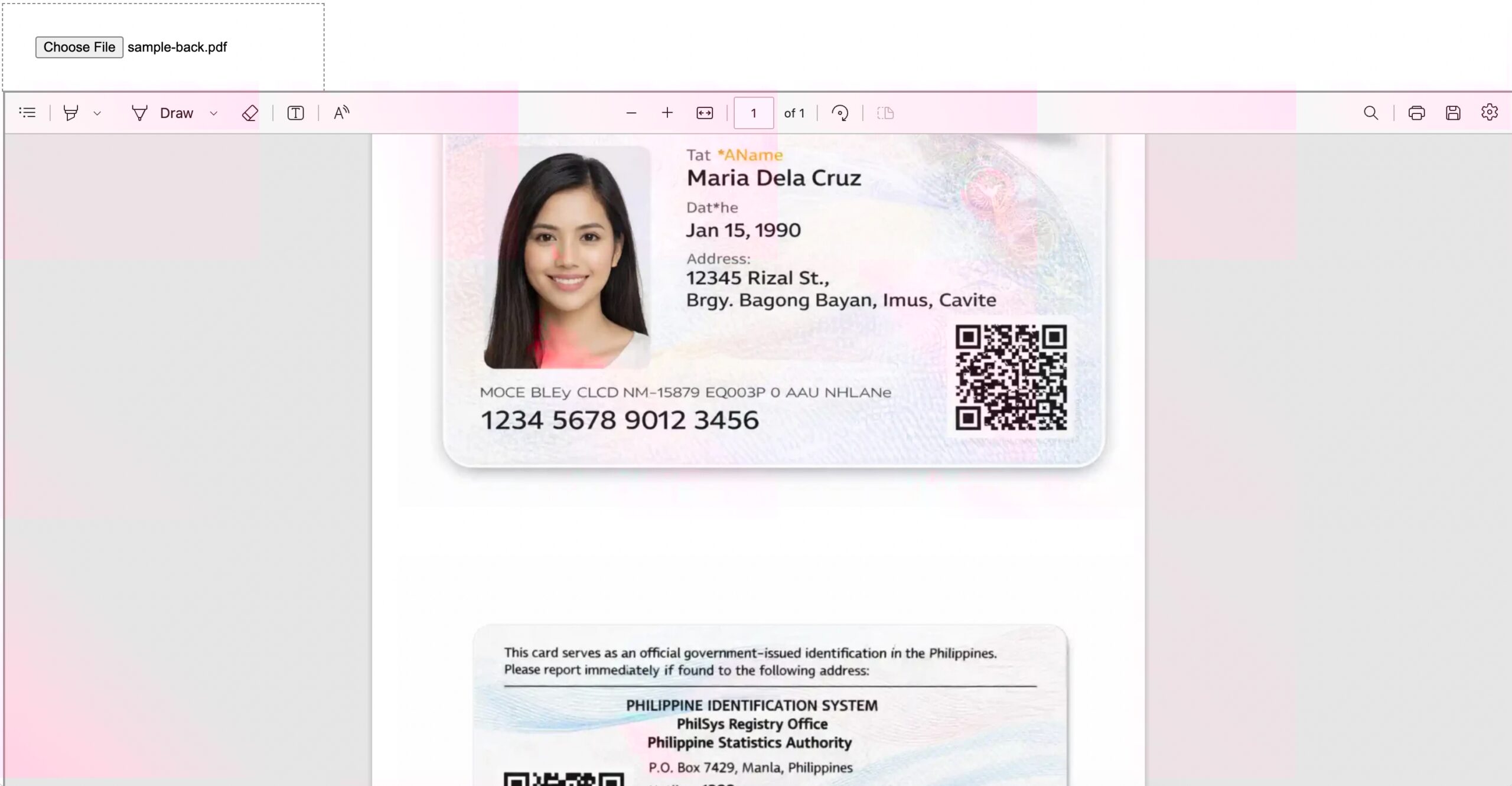
As we you can see page 1 of 1 which indicates we have successfully managed to convert two page pdf to single page pdf with both halves of identity card in one page.
This is ready to be transported or printed.
Conclusion
We have managed to create a final version using pdf-lib library. We started with very basic version. We improved it step by step. I have personally learned how valuable iframe is as part of web platform. It provides so much out of the box which requires very minimum to set it up.